 ChatGPT
 Perplexity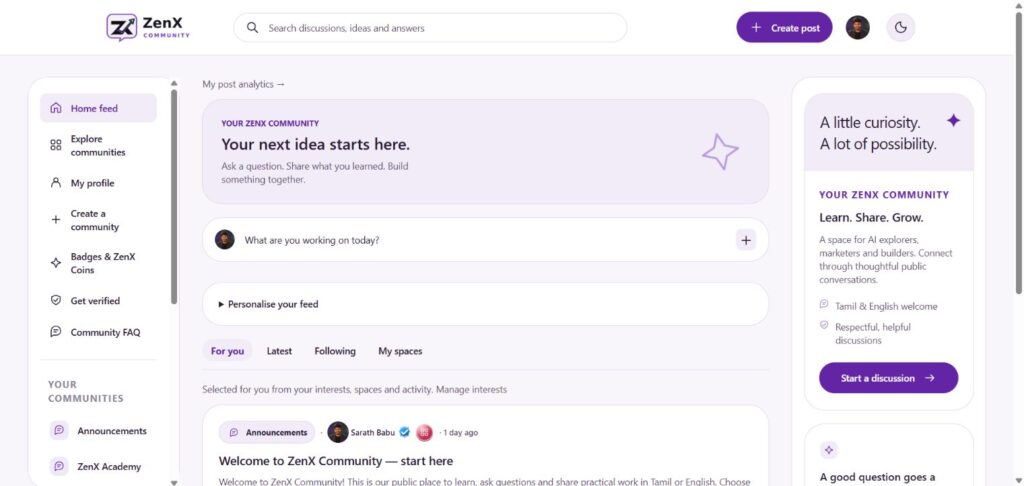
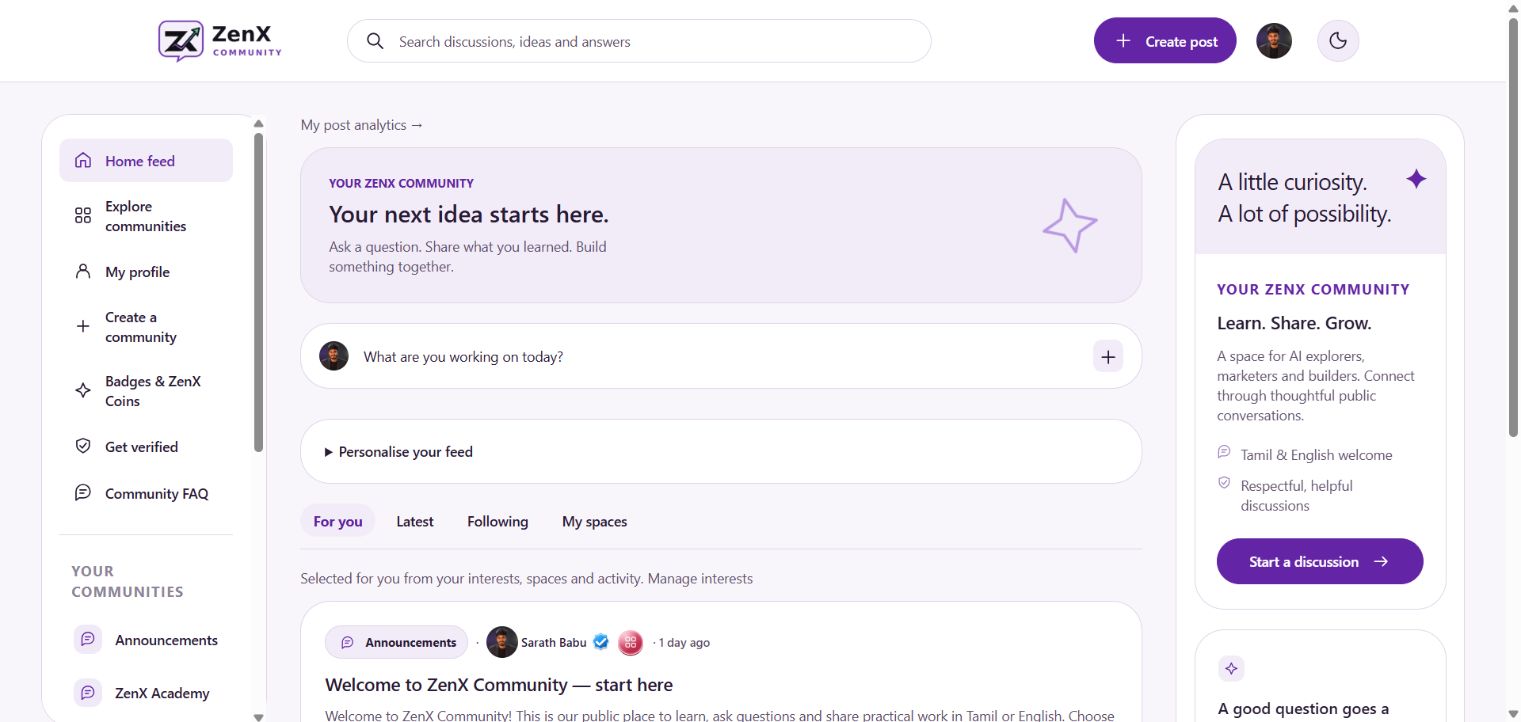
The ZenX Community home feed offers four ways to browse discussions: For you, Latest, Following and My spaces. Choose a filter based on whether you want personalised discovery, recent discussions, followed accounts or your joined communities.
Which feed filter should you use?
| Filter | Reader goal | Practical use |
|---|---|---|
| For you | Discover relevant conversations | Explore discussions selected from your interests, spaces and activity. |
| Latest | Browse recent discussions | Check new questions and updates. |
| Following | Read from followed accounts | Keep up with people whose contributions interest you. |
| My spaces | Focus on joined communities | Return to discussions in communities you have joined. |
How to switch your ZenX Community feed
- Open the community home feed.
- Find the row of filters beneath the post composer.
- Select the view that matches your reading goal.
- Open a discussion title to read the full post and its comments.
The screenshot shows the For you view and its explanation: content is selected from interests, spaces and activity. Treat it as a discovery feed rather than a complete chronological list.
Use interests and topic spaces together
The feed contains Personalise your feed and Manage interests controls. These provide context for personalised discovery. Use Explore communities when you want to find a topic directly instead of waiting for it to appear in recommendations.
Example: if you are learning Google Ads, explore the available advertising-related communities, read a relevant discussion and use the matching space for future questions. If you want official updates, open Announcements directly.
A simple reading routine
- Check Latest for recent activity.
- Use My spaces to concentrate on your learning topics.
- Browse For you when you want to discover something adjacent to your interests.
- Move from reading to starting a discussion when you have a clear question.
Why does a feed seem different from another view?
Each filter has a different purpose. A personalised feed and a joined-space feed need not show the same posts. Before assuming a discussion is missing, check which filter is selected and open the relevant space directly.
Browse Latest · Open Following · Open My spaces
New to the platform? Read the ZenX Community launch guide for a wider tour. Interface screenshots reflect 23 October 2026; use the linked community pages for current details.