 ChatGPT
 Perplexity
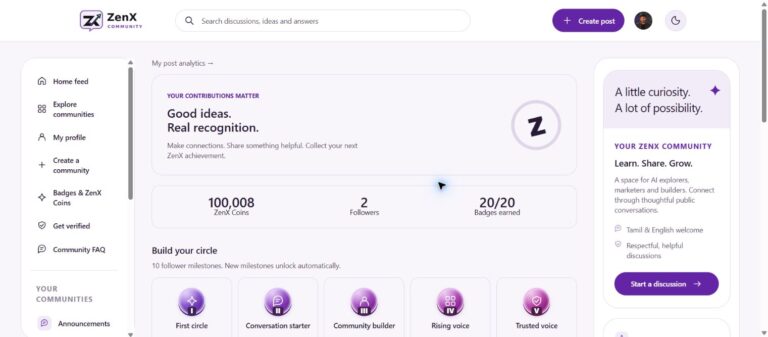
Your ZenX Community profile brings together your public identity and contributions. It can show a display name, username, photo, biography, follower information, ZenX Coins, achievement badges and public posts. Use it to help other members understand who is contributing to a discussion.
How to open your profile
- Open ZenX Community while signed in.
- Select My profile in the left navigation.
- Review the public-facing name, username and profile details.
- Use the profile’s Edit profile link to access your settings.
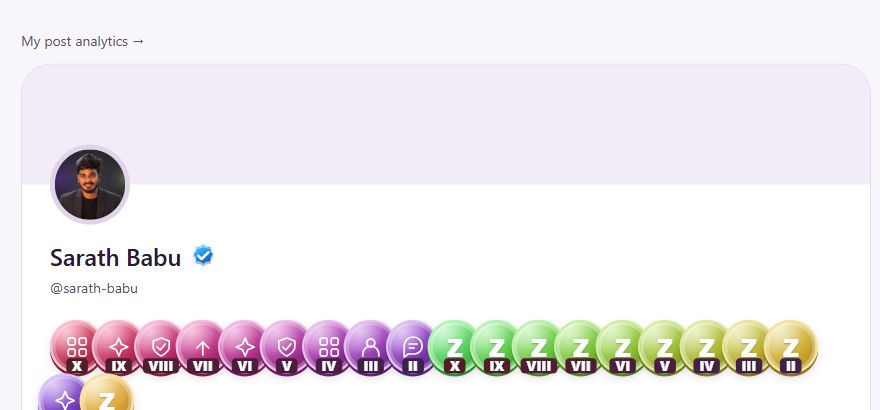
The screenshot shows Sarath Babu’s public profile header as an example. Your own profile may show different badges and information.
What each profile element means
| Element | Context for readers |
|---|---|
| Display name and photo | Help people recognise the contributor. |
| Username | Appears as an @handle and in the example profile’s public URL. |
| Biography | Adds background about the member. |
| Public posts | Let readers explore the member’s published contributions. |
| Achievement badges | Represent follower or contribution milestones. |
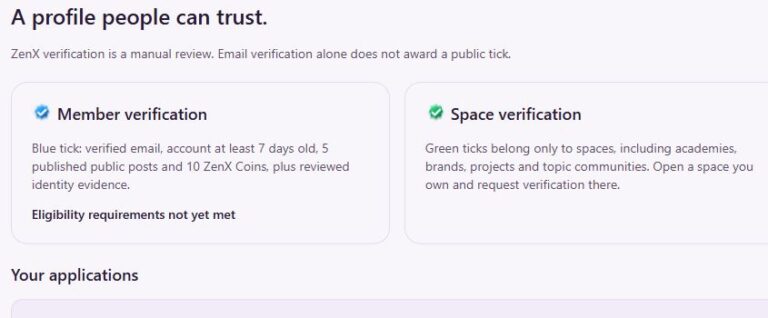
| Verified tick | Indicates the separate member-verification status. |
Write a useful profile biography
A practical bio can explain your learning interests, the type of work you share and what you want to discuss. This is an editorial suggestion, not a required community format.
“Learning AI tools and digital marketing. I share small SEO experiments and ask practical questions about campaign planning. Happy to exchange feedback in Tamil or English.”
Keep public information intentional. Review a bio before publishing it, especially if it mentions personal contact details or a workplace’s private projects.
Badges and verification serve different purposes
The coloured achievement icons in the screenshot have milestone labels. The blue tick beside the name belongs to member verification. Reaching a contribution milestone should not be treated as proof that an account has passed identity review.
- Open Badges & ZenX Coins for milestone information.
- Open Get verified for current member-review requirements.
- Read the community badges and verification FAQ for related guidance.
Profile review checklist
Check that your display name is recognisable, your bio explains your interests and your public posts represent the work you want to share. Use the profile settings page from your signed-in account when details need attention.
To view another member, use the author link on a discussion. To return to active conversations, open the home feed.
New to the platform? Read the ZenX Community launch guide for a wider tour. Interface screenshots reflect 23 October 2026; use the linked community pages for current details.